 Aniv AI
Choose a photo
Select a JPG, PNG or WebP, or drop it into the preview. Portraits and product photos with a clearly visible subject are a good place to start.
Bring attention to the person or product in your photo. Separate the subject, soften the surroundings and fine-tune the blur in a live preview before downloading.
 Original
Drag image here, or click to select
Keep your subject in focus and soften the background. Adjust the effect after processing without another credit charge.
Output format
40 credits per image. Changing the blur strength does not cost extra.
Choose an image to get started.
Create a softer backdrop without losing focus on your subject.
Select a JPG, PNG or WebP, or drop it into the preview. Portraits and product photos with a clearly visible subject are a good place to start.
Click the processing button to separate the subject, then move the blur slider to find the right balance. Switch to a transparent background if you need a cutout instead.
Compare the original with your edited image, then download the PNG when you are ready. You can keep adjusting the same result without another generation charge.
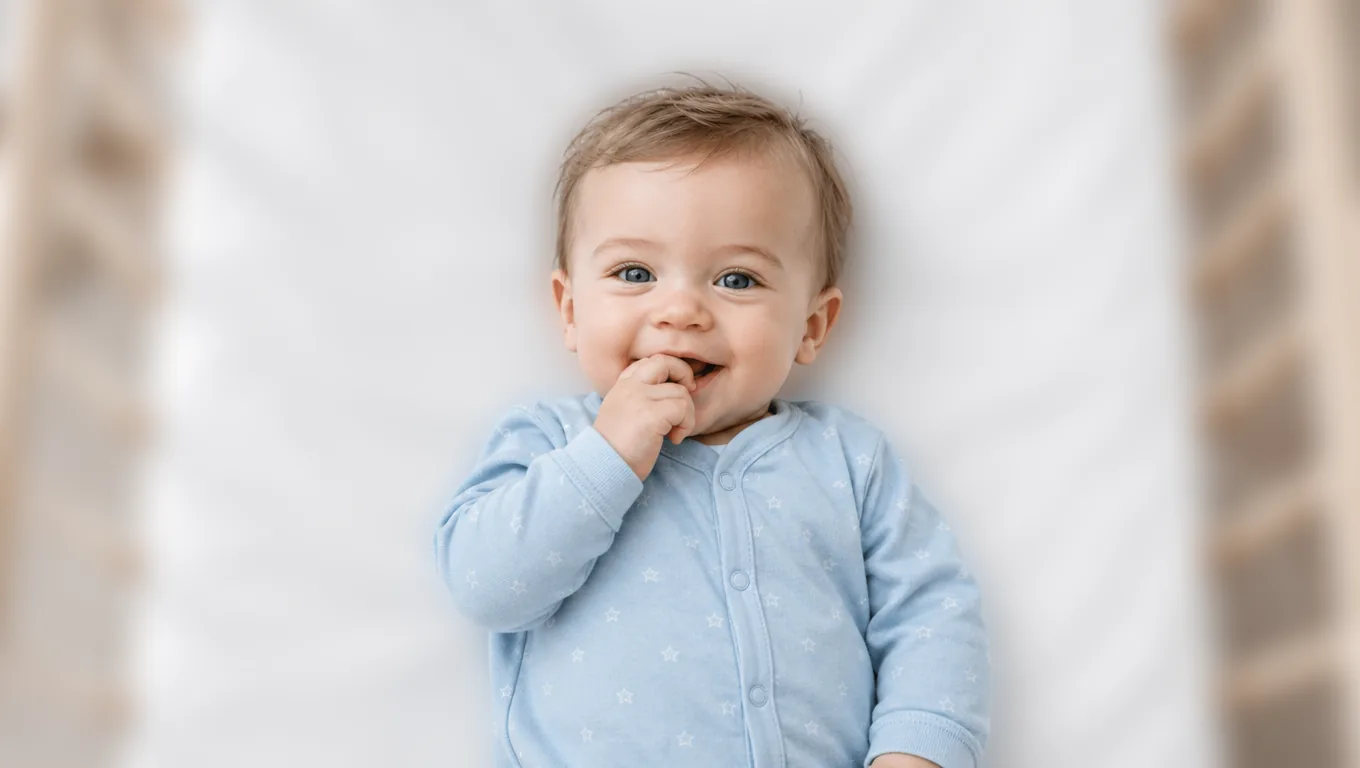
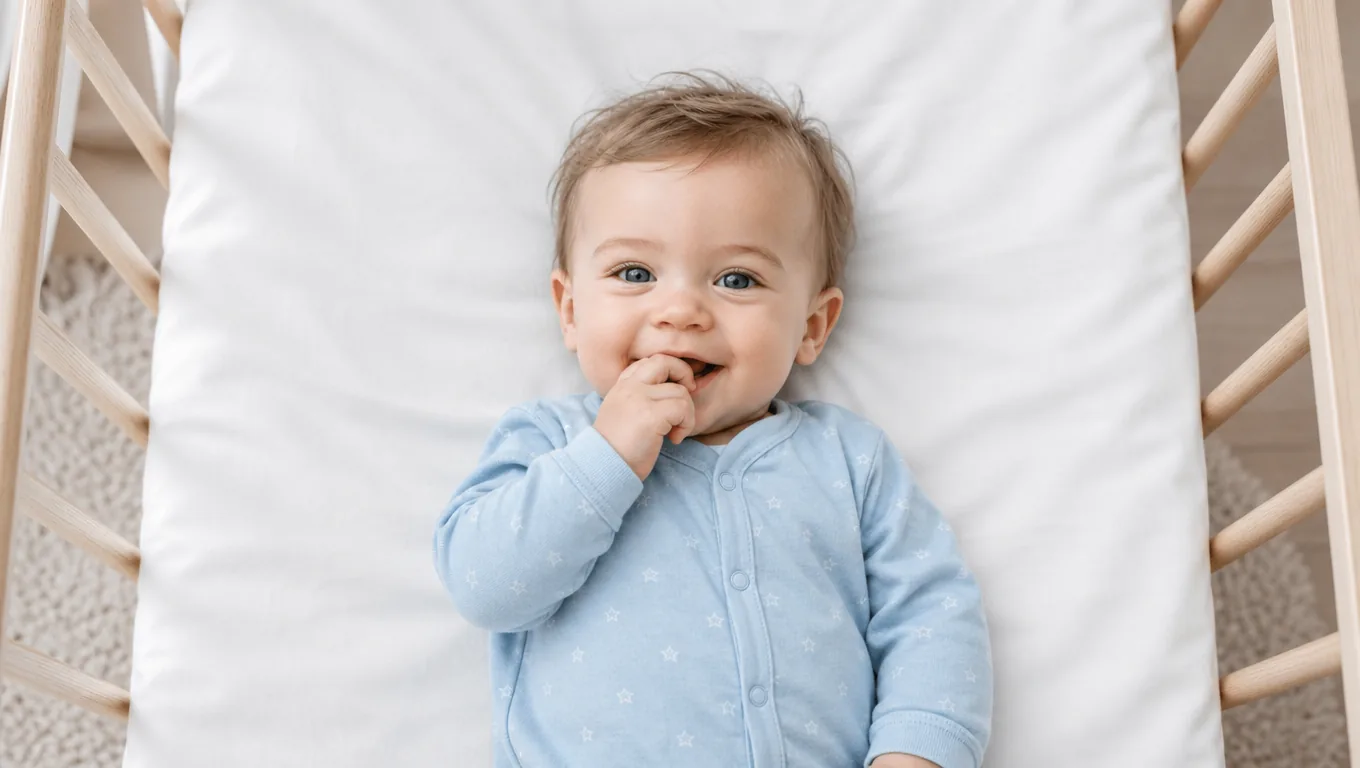
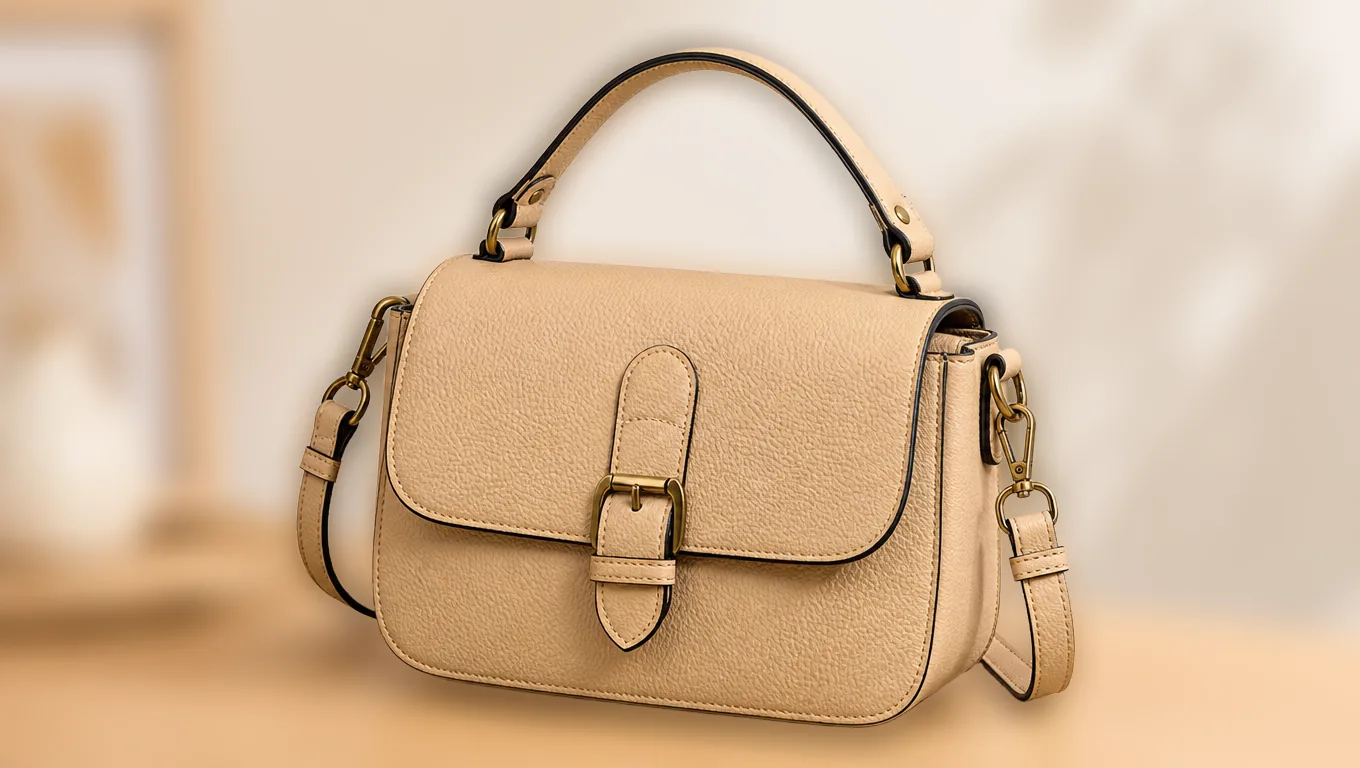
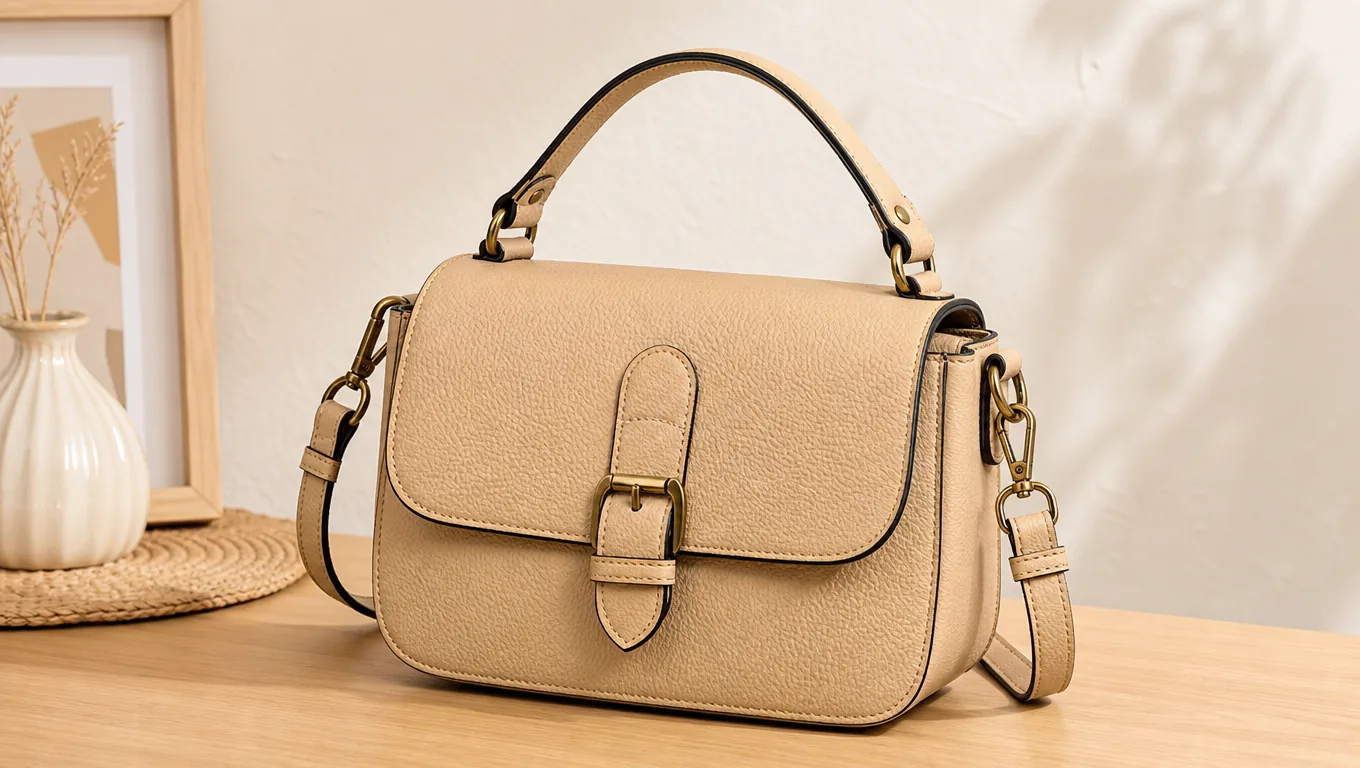
All four below are real results. Drag the handle and look at the edges yourself — a blur is judged on whether the subject got softened along with the background.
 OriginalBlurred
When you do not want a plain white background but the table and the props are stealing attention, blur beats a cutout. Drag the handle above and watch the bag's edge and the brass buckle: the subject should stay sharp and only the layer behind it goes soft.
OriginalBlurredThis baby's hair is close in colour to the white bedding, which is where many tools smear the ends away. Here the subject is separated first and the background blurred after, so the hairline stays readable.

 OriginalBlurred
The long fur behind this retriever's ears is the best place to check where the blur stops: soften the fur and it shows; soften only what is behind it and it reads right.
 OriginalBlurred
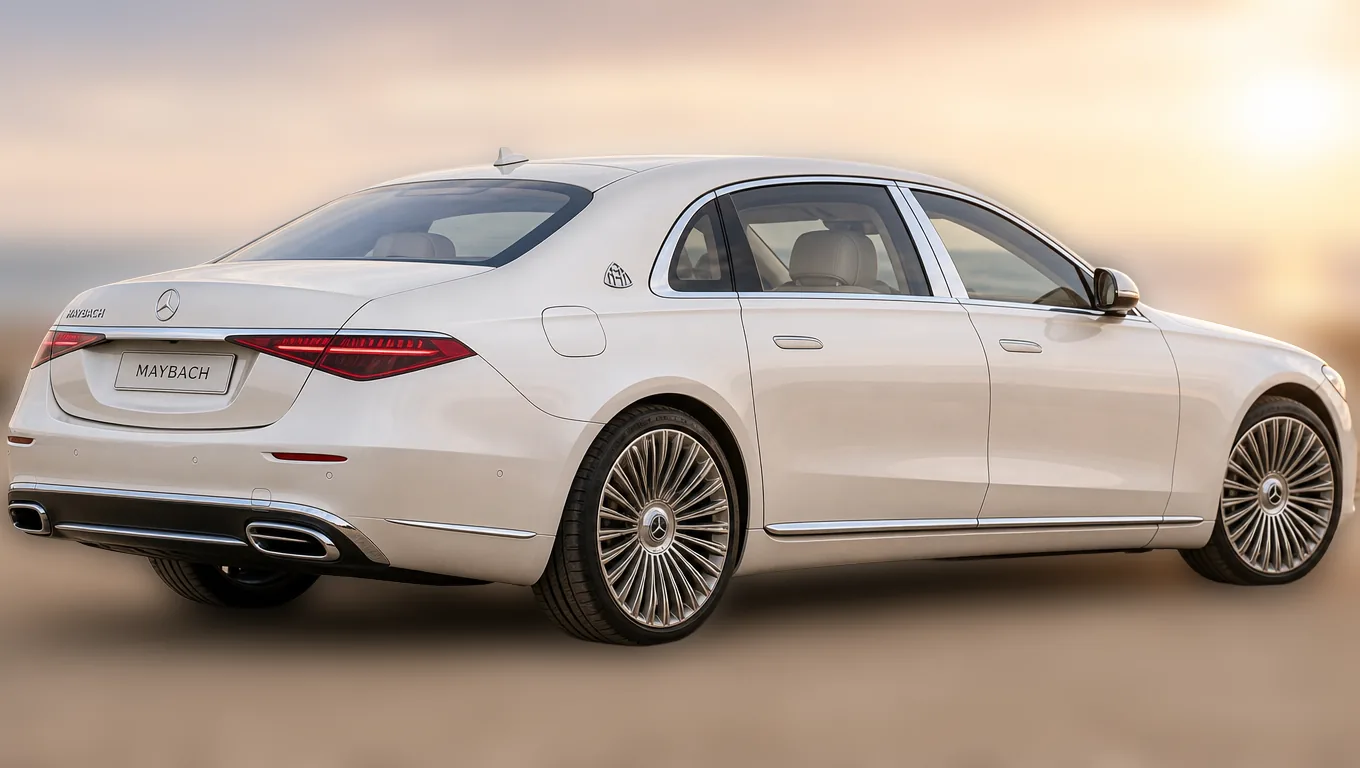
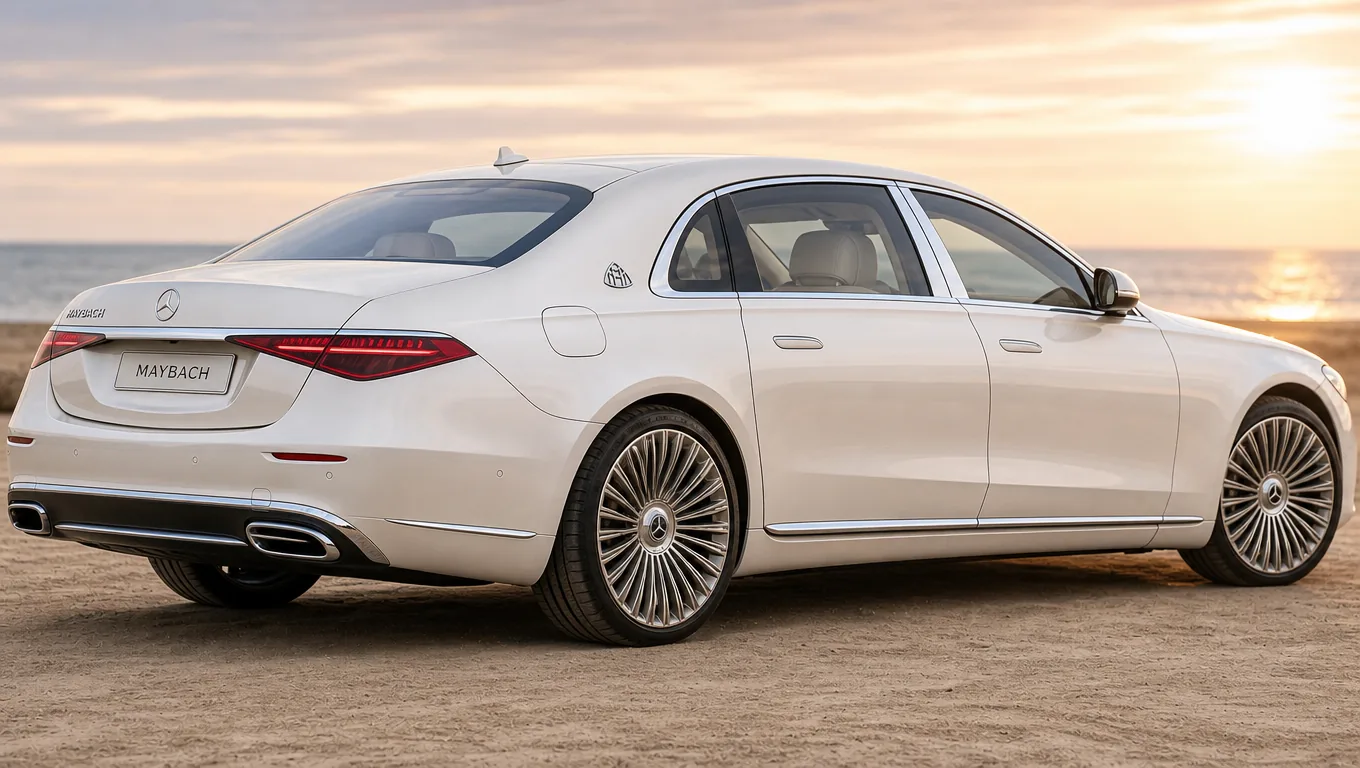
The sky and sand at this beach pull the eye on their own. Blurred, the car is pushed forward immediately — and the reflections on its glass have not gone soft with the background.
With the background softened the subject stands out, and one photo works in more places.
Phone photos keep the background too sharp, so it competes with the subject. Blur restores the sense of depth and pushes the subject forward.
Soften the room behind you for a clean frame — no tidying up and no green screen required.
When a pure white cutout is too stark but the background is distracting, blur beats removal: the scene stays, it just steps back.
Have another question? Contact us at support@aniv.ai